 PixRinse
Screenshots show the English app. Preset names and controls are also available in your app language.
Your starting point
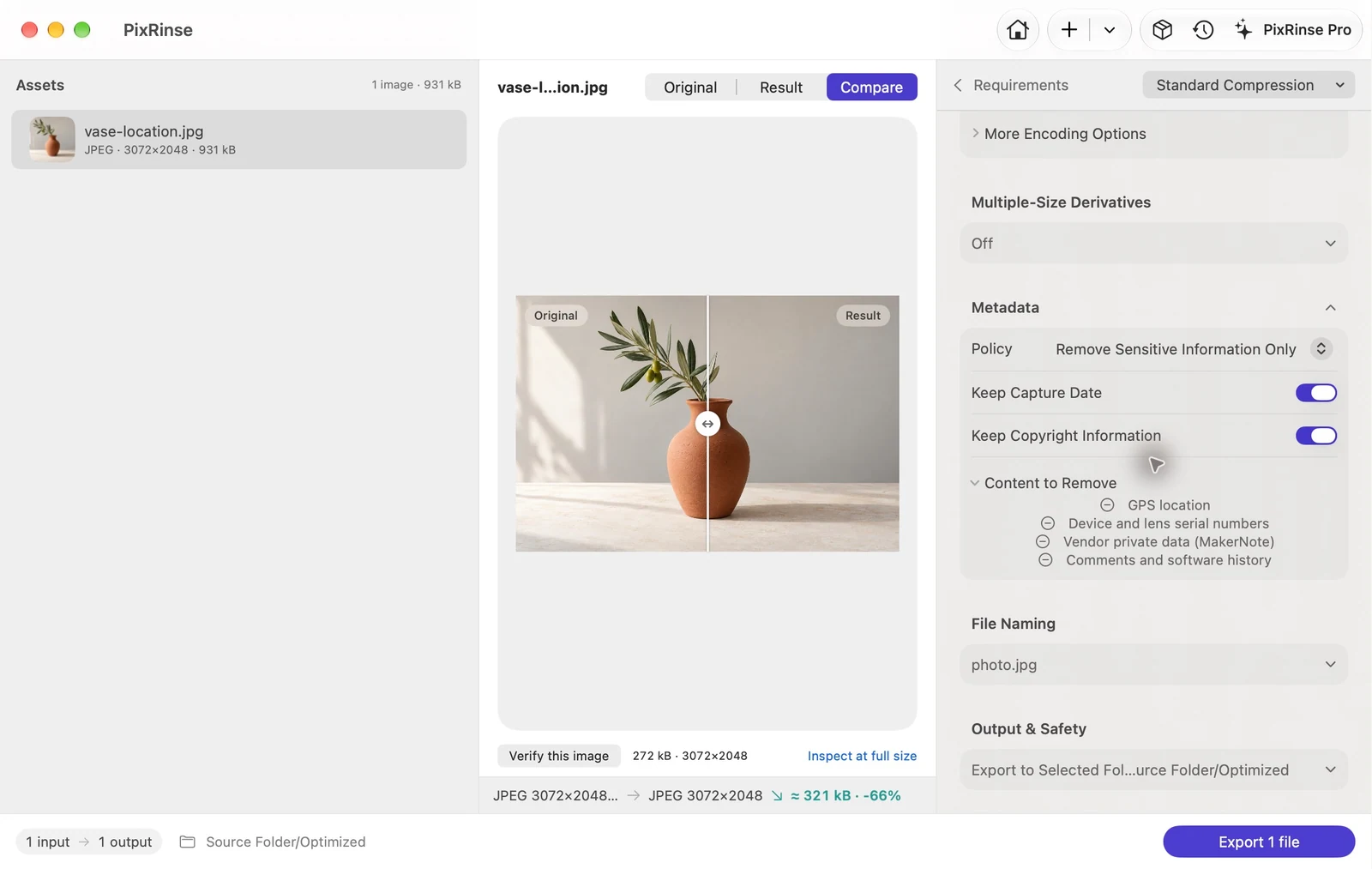
Use Standard Compression · metadata controls in PixRinse, then review these settings against your actual destination.
| Policy | Remove Sensitive Information Only |
|---|---|
| Removes | GPS location and device serial numbers |
| Capture date in this example | Keep Capture Date — on |
| Processing | On your Mac |
How to do it
Add the images you plan to share
Keep the original files in your private archive. Work on an export set for the people or platform receiving the images.
Enable sensitive metadata removal
In Advanced, choose “Remove Sensitive Information Only”. Leave Keep Capture Date on for this example; review the copyright control for your own files.
Choose a suitable output format
Keep the source format when appropriate, or choose a sharing format. If you want to avoid pixel changes, check whether Lossless Cleanup supports the particular operation.
Export and verify
Review the result and inspect the exported file’s metadata with an independent metadata viewer when location privacy is important. Share the exported copy.
THE FILES FROM THIS WALKTHROUGH
What this example produced
The input deliberately contains synthetic GPS coordinates and a demo camera serial number. The exported JPEG removes both while retaining its embedded capture date.
- Input GPS
- Present — synthetic test coordinates
- Output GPS
- Absent
- Output device serial
- Absent
- Capture date
- 2026:10:01 10:20:30 — retained
| File | Format | Pixels | Bytes |
|---|---|---|---|
| vase-location.jpg | JPEG | 3072 × 2048 | 271,574 |
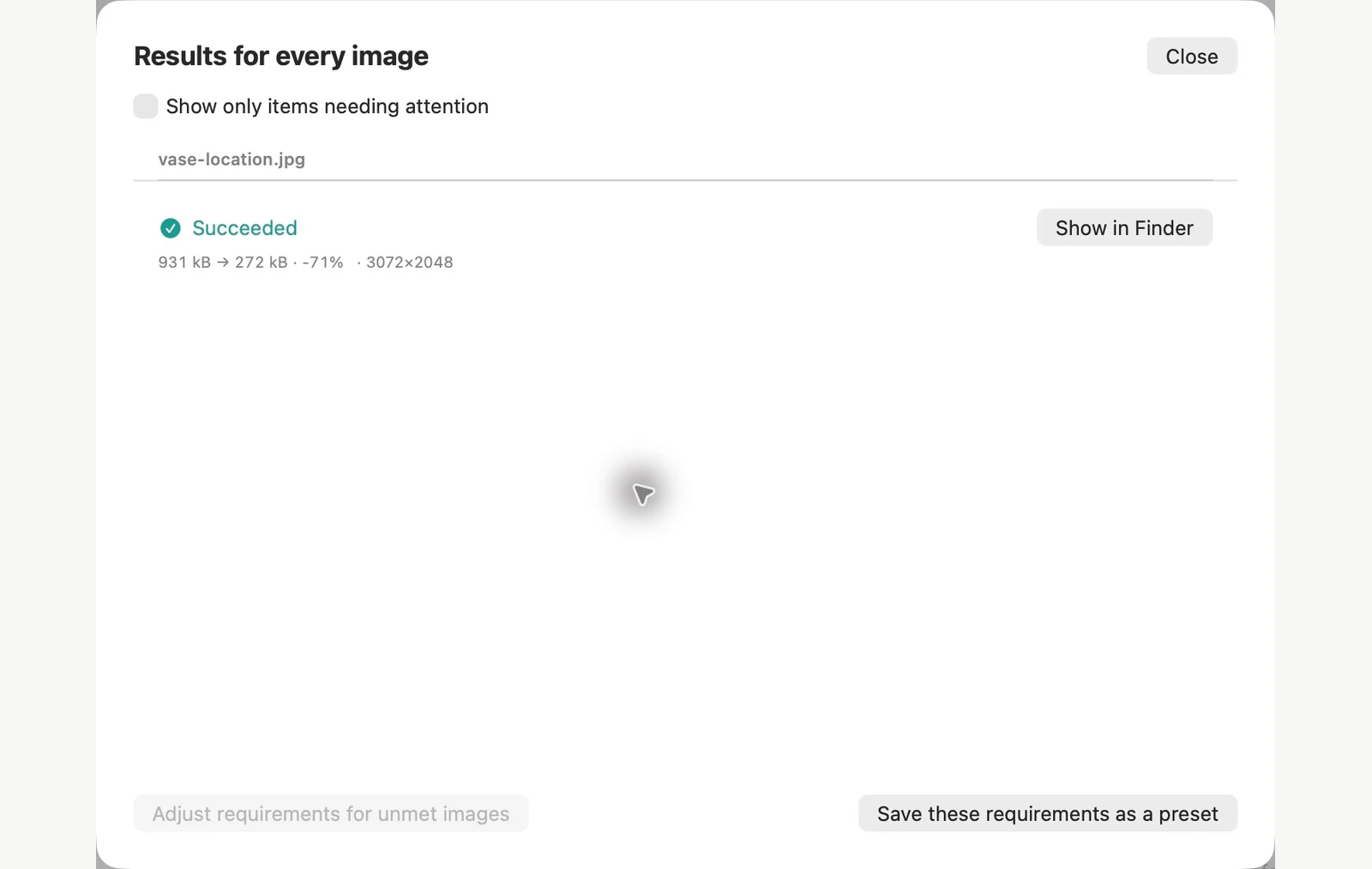
Measured on the sample files shown. Your results depend on your originals and settings. The ceramic-vase photograph is an AI-generated sample. The app screenshots and exported file measurements are real.
ALREADY ON YOUR MAC
Remove GPS from photos without installing anything
macOS has two built-in routes, and they do quite different things. Preview removes only the location, from one photo at a time. Finder’s Convert Image can remove all the metadata we tested, from as many photos as you select.
One photo, location only: Preview
Make a copy if you want to keep the original. Open the photo in Preview, choose Tools > Show Location Info, click Remove Location Info in the GPS section, then save. If Show Location Info is dimmed, the file has no location to remove.
Several photos, all metadata: Finder
Select the photos, Control-click the selection and choose Quick Actions > Convert Image. Choose a format and size, turn off Preserve Metadata, then convert. New files appear next to the originals.
Where the built-in route stops
- Preview changes the file you opened, and only the image on screen. With two photos selected, the second kept its GPS in our test.
- Preview left the capture date, serial number and camera details in place. On a JPEG, the compressed image data was unchanged. On a HEIC, saving re-encoded the photo: our 1.29 MB sample became 386 KB.
- Convert Image with Preserve Metadata off removed GPS, capture date, serial number, camera details and copyright together. You can’t keep just the date.
- Preview’s export and Convert Image’s default settings both keep GPS, so a converted copy is not automatically safe to share. Check it first: Show Location Info is dimmed when a file has no location data.
PixRinse is a better fit when you want to remove GPS and serial numbers across a batch, keep the capture date and leave the originals untouched.
Tested on macOS 27 in November 2026 with sample images. Menu names can differ on other versions, and results depend on your files. Choosing between apps? Compare Mac image compressors.
A couple of common questions
Does this erase everything about the photo?
No. A sensitive-data policy is different from removing all optional metadata. File names, visible content and the receiving service can still reveal information.
Do the photos go to a server?
Image processing happens on your Mac. Optional feedback sends only what you choose to submit, and App Store purchases use Apple’s services.
Put the workflow to work.
Open PixRinse, add a few images and start with the settings above.
Download for MacFree: up to 10 images per batch and one output per source. Compare Free & Pro.