 PixRinse
Screenshots show the English app. Preset names and controls are also available in your app language.
Your starting point
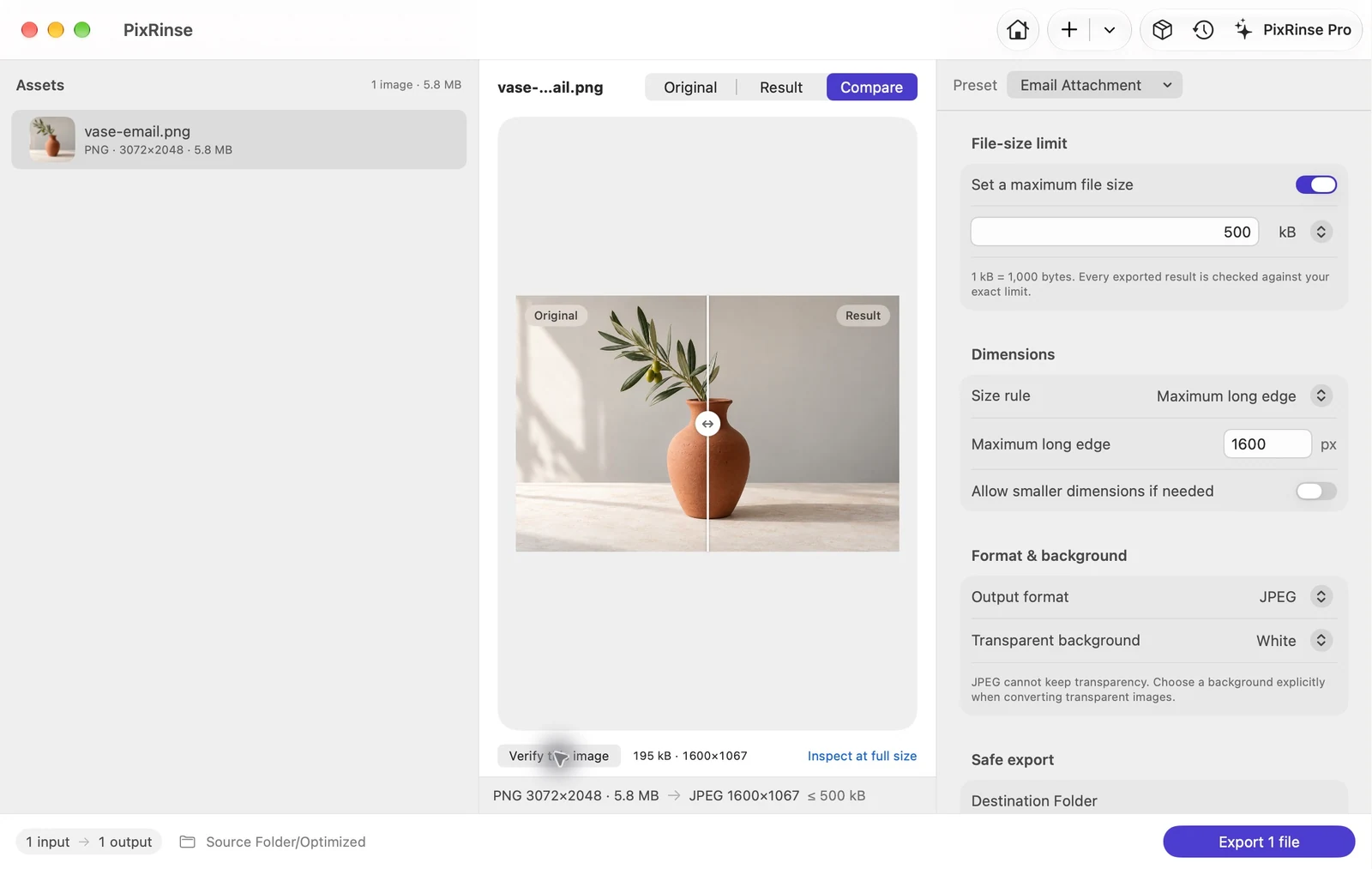
Use Email Attachment in PixRinse, then review these settings against your actual destination.
| Output | JPEG |
|---|---|
| Maximum file size | 500 kB per image |
| Long edge | 1600 px, downscale only |
| Background | White for transparency |
How to do it
Add the photos you want to send
Drag in individual photos or a folder. Choose only the images that belong in the message.
Select Email Attachment
The preset uses JPEG with a 500 kB target and a 1600 px long edge. It converts to sRGB and removes sensitive metadata while retaining the capture date.
Inspect fine details
Read any text in the image at a useful zoom. For diagrams with small labels, a larger image or a shared document may be more appropriate.
Export a separate attachment set
Choose an output folder. Review the completed results, then attach the exported files in your email app.
THE FILES FROM THIS WALKTHROUGH
What this example produced
The sample photo is exported as a 195,385-byte JPEG at 1600 × 1067, ready to attach separately from the original.
- File-size cap
- 500,000 bytes
- Color profile
- sRGB
- Background
- White
| File | Format | Pixels | Bytes |
|---|---|---|---|
| vase-email.jpg | JPEG | 1600 × 1067 | 195,385 |
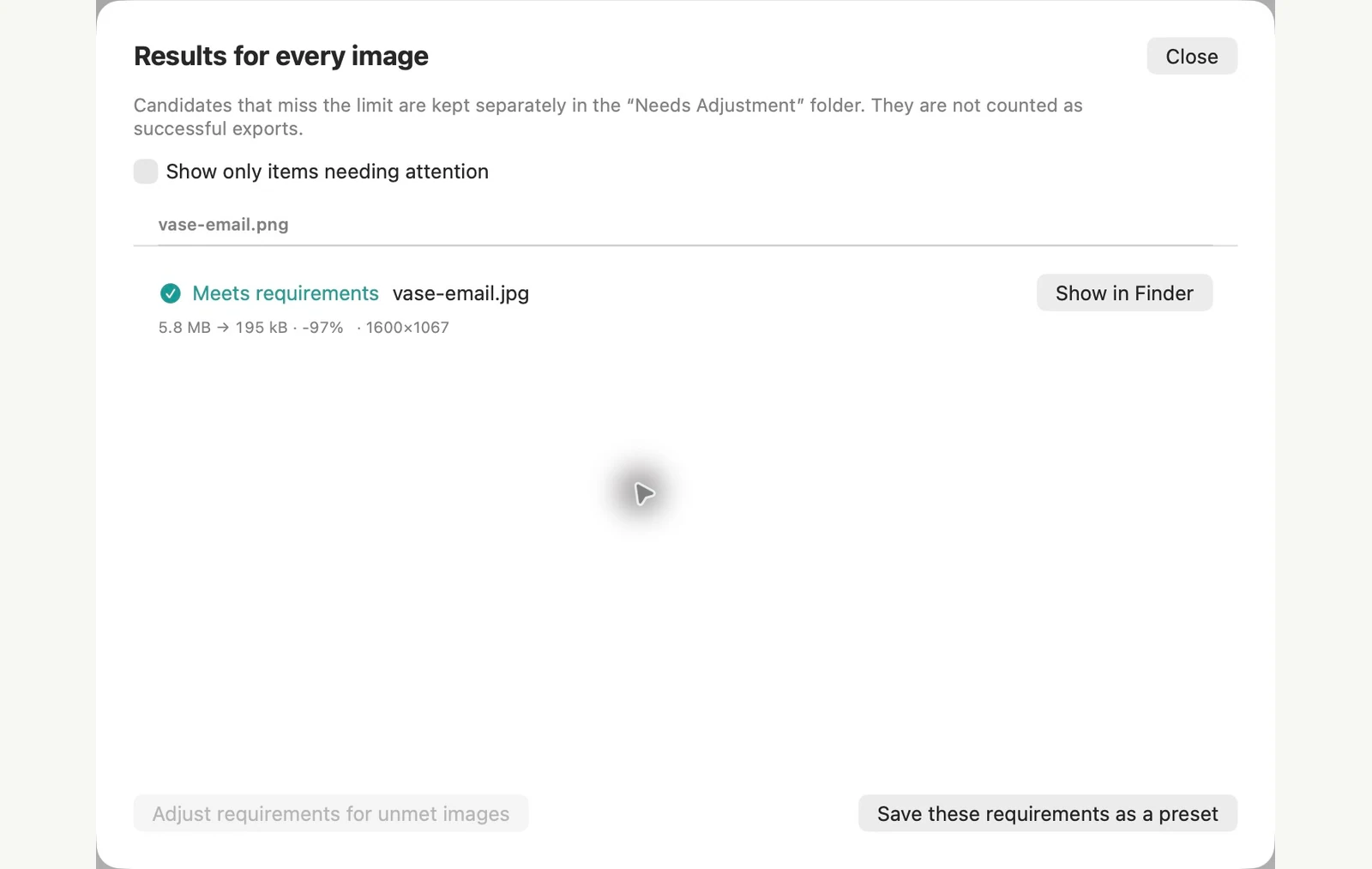
Measured on the sample files shown. Your results depend on your originals and settings. The ceramic-vase photograph is an AI-generated sample. The app screenshots and exported file measurements are real.
ALREADY ON YOUR MAC
Make an email copy with Finder
For a few photos, Finder’s Convert Image makes a smaller copy in a couple of clicks and leaves the originals as they were.
Make the copies
Select the photos, Control-click the selection and choose Quick Actions > Convert Image. Set Format to JPEG and Image Size to Large, then click Convert to JPEG. The new files appear next to the originals, with “Large” added to each name.
Decide about location data
Preserve Metadata is on by default, so GPS location stays in the copies. Turn it off if the recipient should not see where a photo was taken. In our test, that also removed the capture date.
Where the built-in route stops
- Image Size is a fixed choice. On our 3072 × 2048 test photo, Large was 1280 px wide and Medium was 640 px, with nothing in between.
- There is no quality control or file-size limit, so check the sizes before you attach the files.
- Location and capture date go together. You can’t remove one and keep the other with this setting.
PixRinse is a better fit when you send photos often or want consistent results. The Email Attachment preset targets a 1600 px long edge and 500 kB per image, and it removes sensitive metadata while keeping the capture date.
Tested on macOS 27 in November 2026 with sample images. Menu names can differ on other versions, and results depend on your files. Choosing between apps? Compare Mac image compressors.
A couple of common questions
Will the original photos change?
The built-in preset exports copies. Your originals remain in their source location.
Does the preset remove all metadata?
It removes sensitive metadata, including GPS location and device serial numbers, while preserving the capture date. Use the metadata controls if you need a different policy.
Put the workflow to work.
Open PixRinse, add a few images and start with the settings above.
Download for MacFree: up to 10 images per batch and one output per source. Compare Free & Pro.