 PixRinse
Screenshots show the English app. Preset names and controls are also available in your app language.
Your starting point
Use Delivery Projects in PixRinse, then review these settings against your actual destination.
| Organize | Sources × delivery purposes |
|---|---|
| Review | Ready, outdated and pending outputs |
| Update | Changed deliveries |
| Free project | 3 sources, 2 purposes, 1 saved project |
How to do it
Start a Delivery Project
Open Delivery Projects from the toolbar. Name the project for the actual job or collection, rather than a single output file.
Add sources and purposes
Add the original assets and define each intended delivery. Give purposes clear names such as Website, Email or Product square, with the appropriate requirements.
Review the delivery matrix
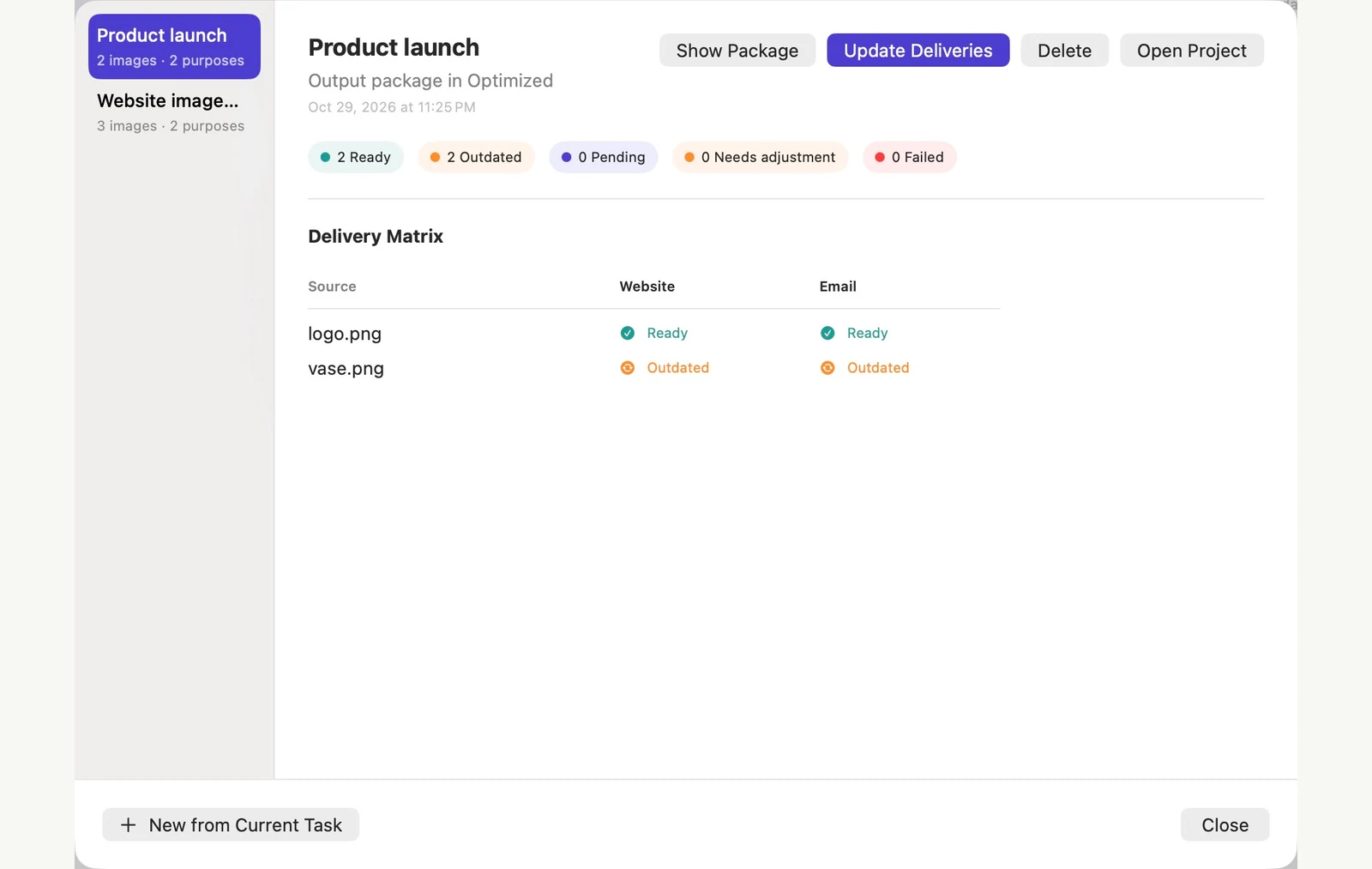
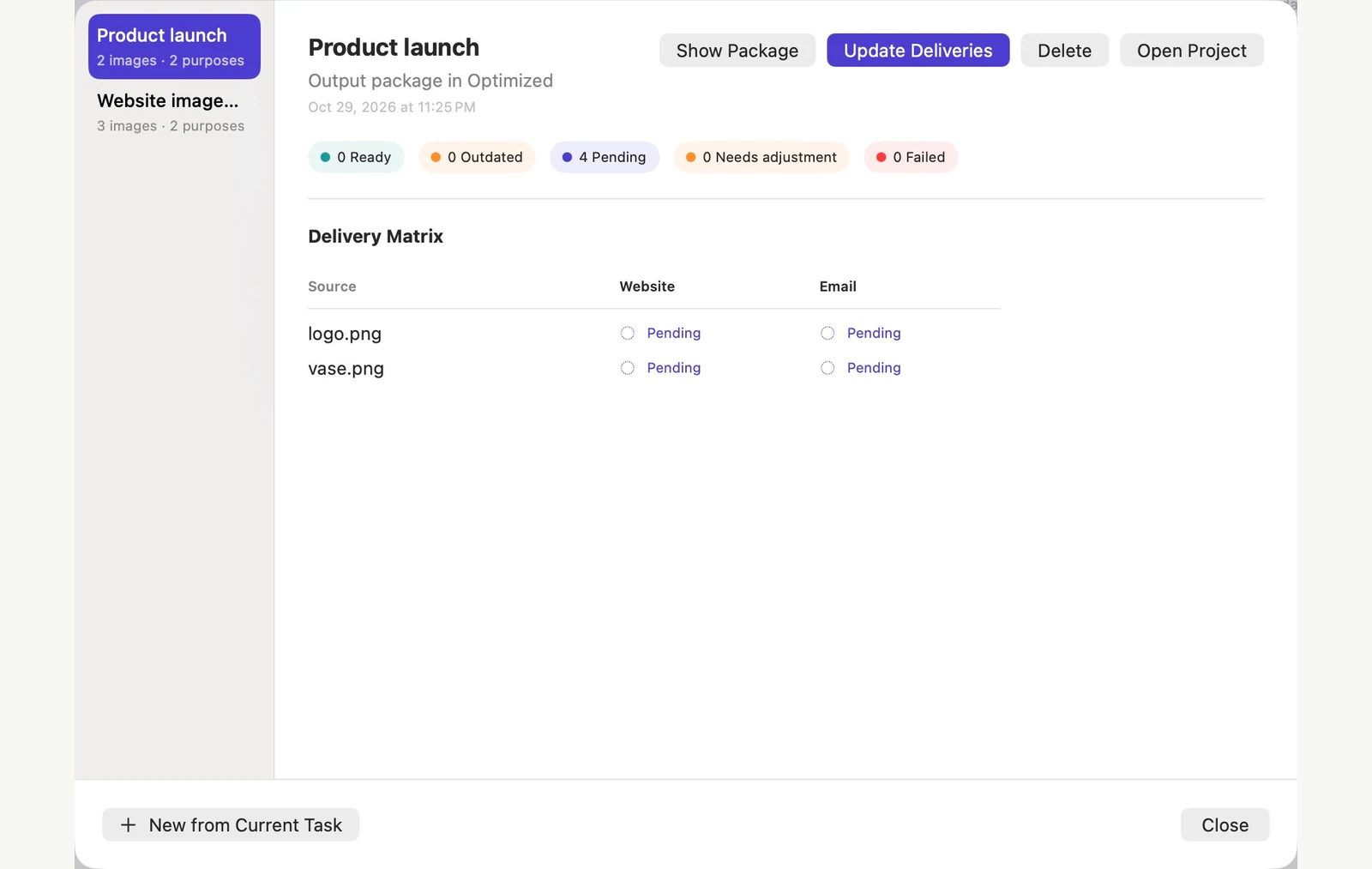
Inspect which source-purpose combinations are ready, pending or outdated. Resolve missing files or requirements before running the update.
Update when the sources change
After editing a source outside PixRinse, reopen the Delivery Project to load the new version. Review the affected deliveries and update them. If a source-changed warning appears, reopen the project before retrying. Check the results before handing them over.
THE FILES FROM THIS WALKTHROUGH
What this example produced
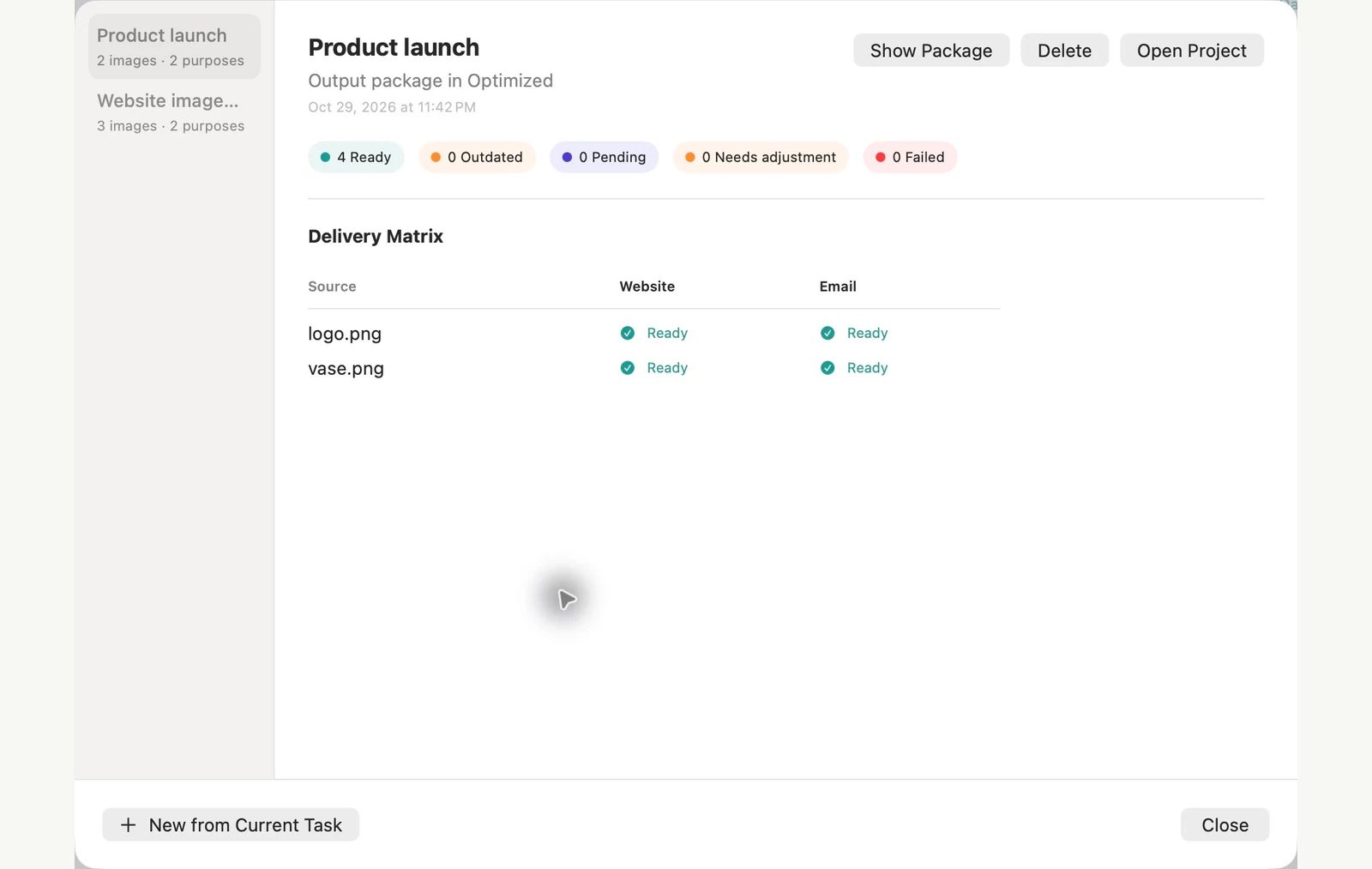
Two source images have Website and Email purposes. After the first four exports are ready, revising only the vase source makes two deliveries outdated while the logo’s two outputs stay ready. Reopen the project to load the external edit, then update the two affected deliveries to return all four to Ready.
- Sources
- 2
- Purposes
- Website and Email
- After changing one source
- 2 Ready · 2 Outdated
- After updating
- 4 Ready · 0 Outdated
| File | Format | Pixels | Bytes |
|---|---|---|---|
| purpose-2-d10c2a/logo.jpg | JPEG | 1024 × 1024 | 65,171 |
| Web High Quality/logo.webp | WebP | 1024 × 1024 | 17,198 |
| purpose-2-d10c2a/vase.jpg | JPEG | 1600 × 1067 | 195,385 |
| Web High Quality/vase.webp | WebP | 1920 × 1280 | 72,818 |
Measured on the sample files shown. Your results depend on your originals and settings. The ceramic-vase photograph is an AI-generated sample. The app screenshots and exported file measurements are real.
A couple of common questions
Is this the same as a preset?
A preset stores processing settings. A Delivery Project also organizes a set of sources and output purposes and tracks their delivery state.
Does every update rerun everything?
The project workflow is designed to identify changed or pending deliveries. Review the matrix and proposed update before running it.
Put the workflow to work.
Open PixRinse, add a few images and start with the settings above.
Download for MacFree: up to 10 images per batch and one output per source. Compare Free & Pro.