 PixRinse
Screenshots show the English app. Preset names and controls are also available in your app language.
Your starting point
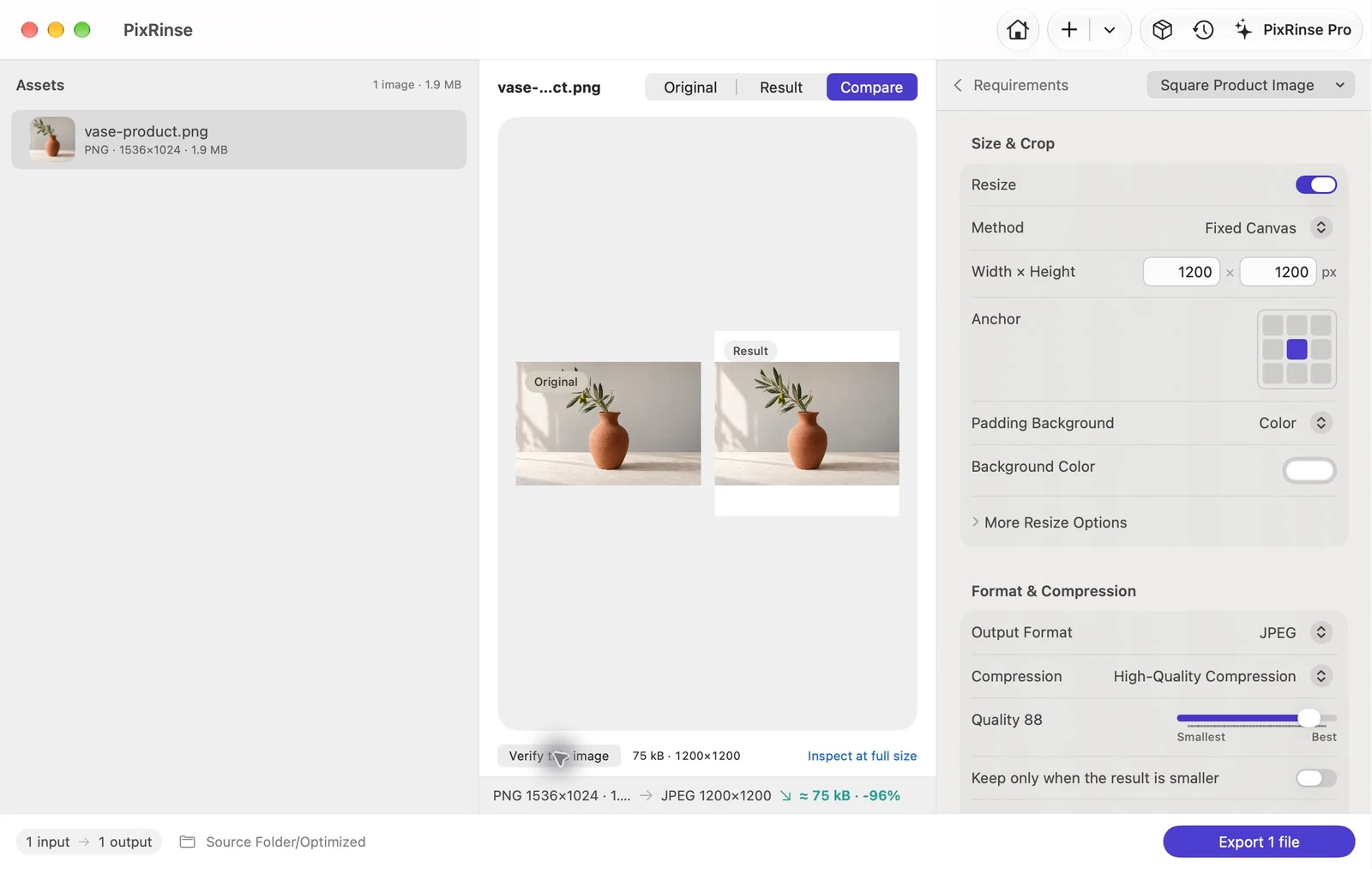
Use Square Product Image in PixRinse, then review these settings against your actual destination.
| Canvas | 1200 × 1200 px |
|---|---|
| Placement | Centered, contained |
| Background | White |
| Output | JPEG, quality 88 |
How to do it
Choose clean product photography
Use images that already have the background and composition you want. The preset is a sizing workflow, not an automatic background-removal tool.
Select Square Product Image
The built-in rule uses a 1200 × 1200 canvas with centred, contained content and a white background. It exports JPEG at quality 88.
Check spacing and image detail
Review narrow and wide products. The white canvas may introduce margins; small sources may need enlargement, so inspect sharpness.
Export the catalogue set
Preserve directory structure if it helps keep collections organised. Confirm your store’s current image requirements before publishing.
THE FILES FROM THIS WALKTHROUGH
What this example produced
The sample product photograph is contained on a white 1200 × 1200 canvas and exported as JPEG at quality 88. The white canvas corners were checked in the exported file.
- Canvas
- 1200 × 1200
- Quality
- 88
- Canvas background
- White
| File | Format | Pixels | Bytes |
|---|---|---|---|
| vase-product.jpg | JPEG | 1200 × 1200 | 74,777 |
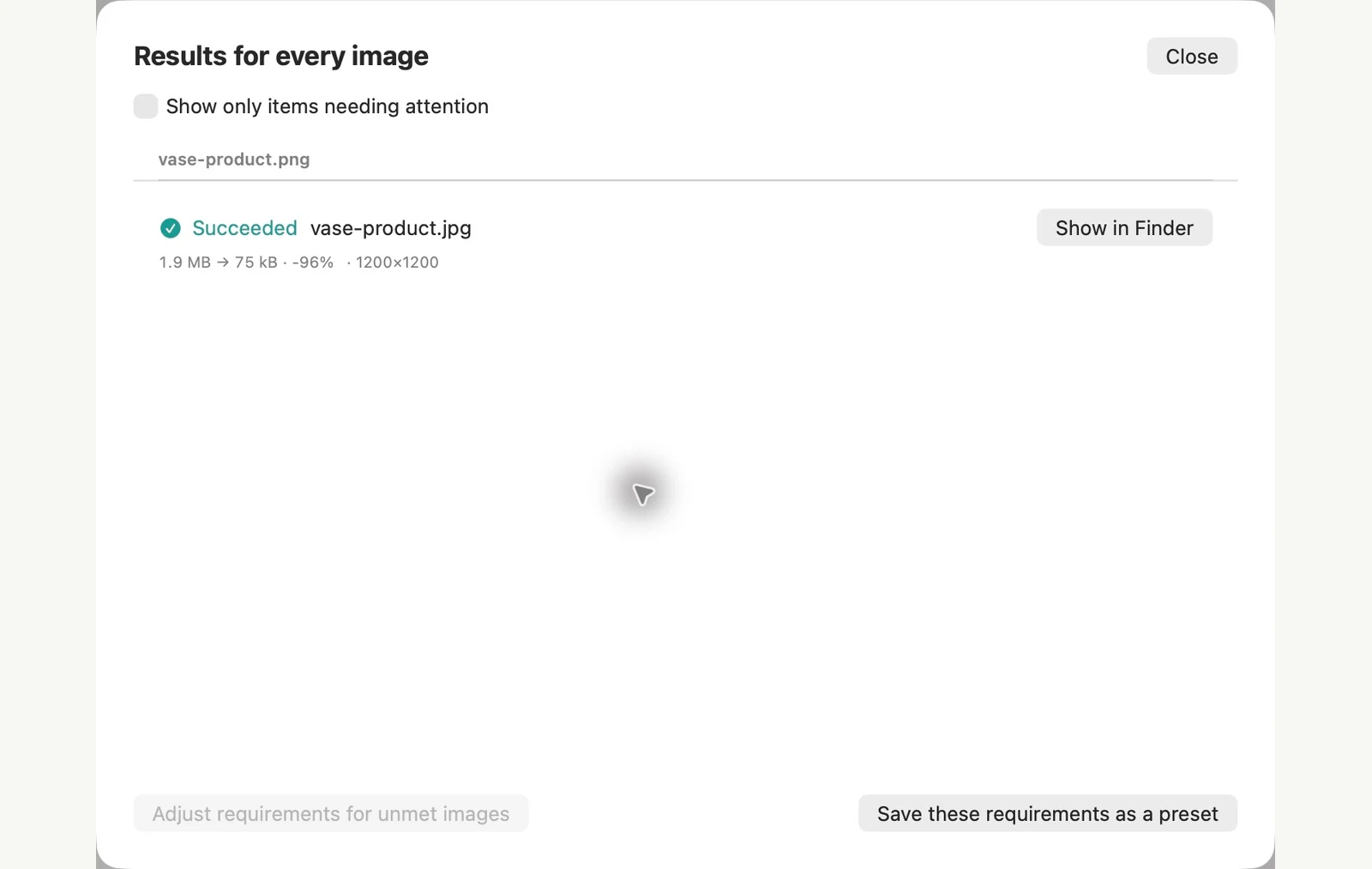
Measured on the sample files shown. Your results depend on your originals and settings. The ceramic-vase photograph is an AI-generated sample. The app screenshots and exported file measurements are real.
A couple of common questions
Will this crop the product?
The built-in preset contains and centers the source on the canvas. Review custom resize changes because cover or crop modes behave differently.
Can I change the square size?
Yes. Edit the canvas dimensions to match your store’s actual requirement and save the recipe if you will use it again.
Put the workflow to work.
Open PixRinse, add a few images and start with the settings above.
Download for MacFree: up to 10 images per batch and one output per source. Compare Free & Pro.